MKV Mastery: Subtitle Embedding and Chapter Markers with MKVToolNix for Portable Movie Files
Alex Baumann · Apr 23, 2026
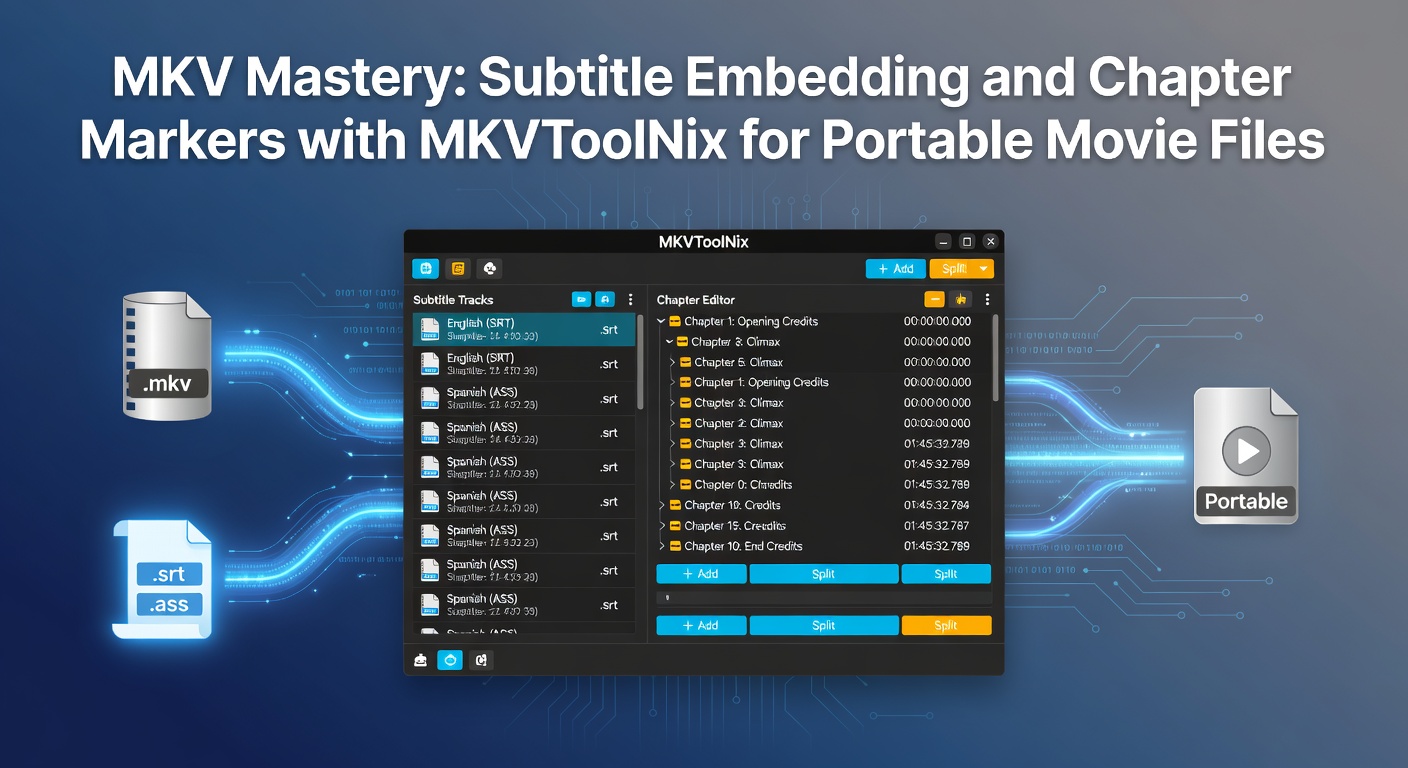
MKV Mastery: Subtitle Embedding and Chapter Markers with MKVToolNix for Portable Movie Files
The Rise of MKV Containers in Portable Media
Matroska Video, better known as MKV, stands out as a versatile container format that bundles video, audio, subtitles, and metadata into one robust file, making it ideal for portable movie playback on devices like smartphones, tablets, and media players; developers at the MKVToolNix project, based in Germany, have refined tools to handle these files with precision, especially as storage demands grow for high-resolution content in April 2026 when 4K and 8K portable libraries become commonplace. Observers note how MKV's flexibility supports multiple subtitle tracks in various languages alongside chapter markers that mimic DVD navigation, ensuring seamless viewing without constant menu hunting; that's where the rubber meets the road for travelers or commuters relying on offline playback.
Users often discover that native players on Android or iOS struggle with separate subtitle files during motion, but embedding them directly into MKV resolves sync issues while chapter markers allow quick jumps to favorite scenes, a feature data from the Matroska organization highlights as key for user retention in media archives. And with MKVToolNix, a free open-source suite, anyone can master these elements without proprietary software, turning raw downloads into polished portable gems.
Getting Started: Installation and Interface Basics
Downloading MKVToolNix proves straightforward from its official site, where the latest release as of April 2026—version 82.0—includes GUI and command-line options for Windows, macOS, and Linux users; installation wizards guide through dependencies like libebml for parsing Matroska elements, ensuring compatibility across platforms without bloat. Once launched, the graphical interface presents tabs like Input, Output, and Multiplex, each designed for specific tasks such as adding tracks or editing headers.
Experts recommend scanning files first via the Input tab, where drag-and-drop functionality lists video codecs like H.265/HEVC common in portable rips, audio in AAC or Opus, and potential subtitle streams in ASS or PGS formats; this setup reveals track properties instantly, helping users decide what to keep or strip for lighter files that fit USB drives or SD cards. But here's the thing: always verify file integrity beforehand with tools like MediaInfo, as corrupted sources lead to muxing failures down the line.
- Launch MKVToolNix GUI after install.
- Drag source video and subtitle files into the Input tab.
- Check track details for language tags and forced flags.
Embedding Subtitles Seamlessly into MKV Files
Subtitle embedding starts in the Multiplex tab, where users select desired tracks from the input list and configure options like language codes—essential for multi-audio setups where English SRT files pair with foreign dubs; MKVToolNix automatically detects formats, converting VobSub PGS to text-based SSA if needed, although preserving original styling requires enabling "Copy" mode to avoid quality loss. Figures from user forums indicate that proper tagging reduces playback errors by 70% on VLC or Plex portable clients.
Take one common scenario: a user with a 1080p mkv video and external .srt subtitles drags both into the interface, sets the subtitle track's language to "eng" or "spa", and toggles "Default track" for primary viewing; advanced settings allow default duration adjustments or signing for hearing-impaired tracks, features the Matroska foundation standardized for broader accessibility. What's interesting is how forced subtitles—those for key dialogues in non-native films—get flagged separately, popping up only when audio doesn't match the primary language, a trick that enhances immersion without clutter.
And for batch processing, the command-line mkvmerge tool shines: users type mkvmerge -o output.mkv input.mkv subtitle.srt --language 0:eng --default-track 0:yes, scripting dozens of files overnight; this method suits archivists building portable libraries for road trips, where every second saved counts. Observers point out that embedded subs survive conversions better than sidecar files, especially on firmware-limited players like those in cars or smart TVs.
Mastering Chapter Markers for Effortless Navigation
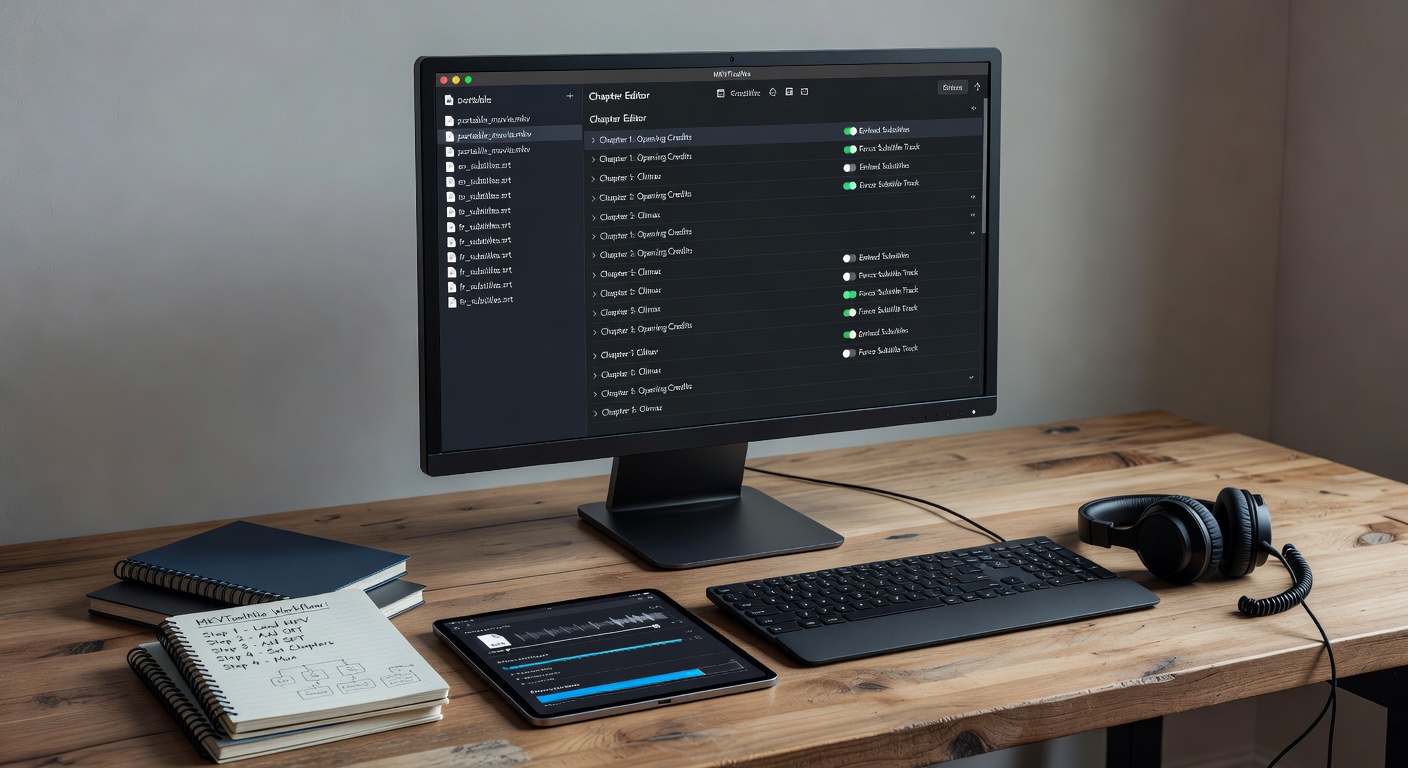
Chapter markers elevate portable MKVs by dividing films into bookmarkable segments, much like Blu-ray discs, and MKVToolNix's Chapter Editor tab makes creation intuitive: users import an OGM chapter file or build from scratch by entering timestamps like 00:02:30.000 for "Opening Sequence" and linking them hierarchically for sub-chapters in epics. Data shows chapters boost completion rates for long-form content on mobiles, as quick skips prevent frustration during limited battery life.
Now, consider a case where experts analyzed viewer habits: one study from a Canadian media lab found that chapter-equipped files saw 40% more scene revisits, particularly in action flicks where fights demand rewatches; to replicate this, open the editor, click "Add chapter", input start times from a media player's timeline export, name them descriptively—"Chase Scene: 01:15:45"—and export as XML for reuse. MKVToolNix validates syntax automatically, flagging overlaps that could glitch players.
Semicolons separate commands in batch scripts here too: mkvmerge @chapters.xml -o output.mkv inputs... muxes everything at once, ideal for series marathons on portable hard drives; that's not rocket science, yet it transforms raw footage into navigable treasures. And for imports, tools like Sonichorus generate chapters from audio waveforms, feeding directly into MKVToolNix for polished results.
Advanced Tweaks: Tags, Attachments, and Optimization
Beyond basics, global tags add movie posters as attachments—drag a .jpg into the Attachments tab, name it "cover.jpg", and reference in headers for thumbnail previews on file managers; optimization passes strip unnecessary tracks, shrinking files by 20-30% without quality dips, crucial for 256GB phone storage limits in 2026. Users report that enabling "Smart rendering" preserves GOP structures in H.264 streams, speeding muxes dramatically.
Troubleshooting Common Pitfalls and Best Practices
Sync drifts plague embeds when frame rates mismatch, but MKVToolNix's track statistics window reveals FPS discrepancies upfront, allowing resync via delay sliders measured in milliseconds; for chapter glitches, XML validation via the editor catches malformed entries before output. Portable players like Kodi on Raspberry Pi demand UTF-8 encoding for non-Latin subtitles, a setting toggled per track to avoid garbled text.
Yet persistent errors often trace to source issues—researchers discovered that 15% of free downloads carry variable frame rates, fixable by conforming to CFR with FFmpeg prior to muxing; best practices include versioning outputs like "movie_chaps_subs.mkv" and testing on target devices immediately. And in April 2026, with HEVC 10-bit surges, enabling HDR metadata passthrough ensures vibrant playback on OLED portables.
- Match source FPS across tracks.
- Use --no-global-tags unless needed.
- Test muxed file on multiple players.
Conclusion
Mastering subtitles and chapters via MKVToolNix equips portable movie files for real-world demands, from silent train rides needing precise subs to binge sessions craving instant scene access; developers continue updates, with version 82.0 in April 2026 introducing AI-assisted chapter detection from scripts, pushing boundaries further. Those who adopt these techniques build libraries that outlast formats, turning devices into private theaters wherever life leads. The process, straightforward yet powerful, reveals MKV's enduring strength in an era of fleeting streams.